|
This is a package
for graphical analysis of extremely broadband spectra with resolved
rotational structure. The spectra can be pure rotational spectra, such
as FASSST spectra, or rotation-vibration or
vibronic spectra from Fourier transform interferometers, or laser
spectrometers. Even if true broadband spectra are not available the package
allows concatenation of many shorter spectra into a single spectrum and
efficient operation on such a segmented spectrum. A brief description of
the AABS package has been
given in
Z.Kisiel, L.Pszczolkowski, I.R.Medvedev, M.Winnewisser,
F.C.De Lucia, E.Herbst, J.Mol.Spectrosc.
233,231-243(2005)
and that paper can be used for citation.
Since then the package has been used in many further
studies, and a summary of some of the
more advanced applications
can be found in
Z.Kisiel,
L.Pszczolkowski, B.J.Drouin, C.S.Brauer, S.Yu, J.C.Pearson, I.R.Medvedev,
S.Fortman, C.Neese, J.Mol.Spectrosc.
270,134-144(2012)
Complete (and continuously updated) documentation of the package is now
provided in its own help
file. The following is only intended to provide a
summary of the main features of the package, and a direct route to the
downloads:
|
| General
description of the AABS package: |
|
At the core
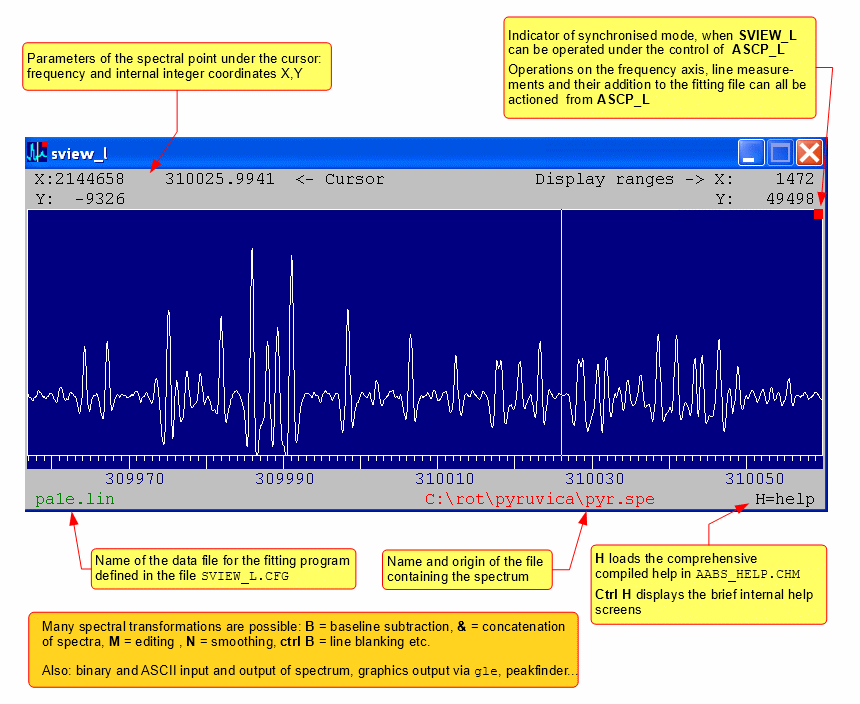
of the AABS package are two display programs:
which are integrated with several other programs. The package
also comprises of the utility program AC, which allows
generation of dataset distribution plots that allow rapid
overview of large spectroscopic datasets.
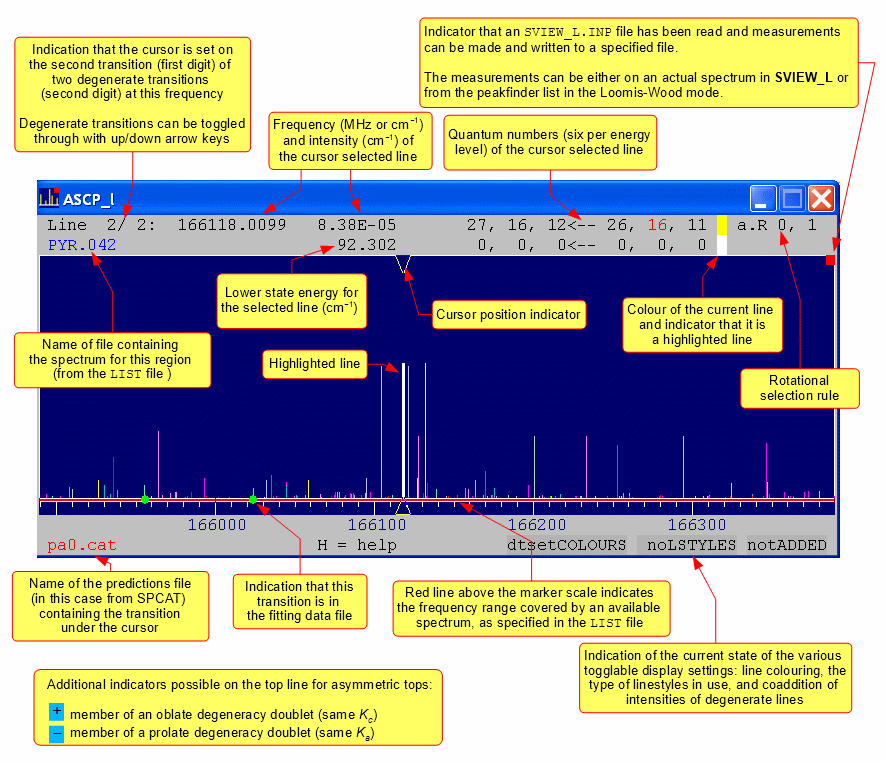
ASCP_L
is normally used as the active program, and the
display of SVIEW_L is locked to
it. Predictions of spectroscopic species of relevance to the
current spectrum can be loaded into the program and displayed
with various options for distinguishing between the various
species. A special highlighting option by 'cloning' the current
line allows highlighting of a transition sequence of interest.
Frequency regions around successive predictions in this
sequence can then easily be inspected in turn, and if there are
suitable lines in the spectrum those can be measured. The
frequency determined by SVIEW_L and quantum
numbers from ASCP_L can be added
to a specified datafile for the fitting program. When
deviations from predictions are not too large then the analysis
process involves only two keystrokes per line. Predictions and
data for fitting in the standard of either SPFIT/SPCAT or ASFIT/ASROT packages can be used directly, and those from ERHAM can
be used by means of several reformatting programs (instructions).
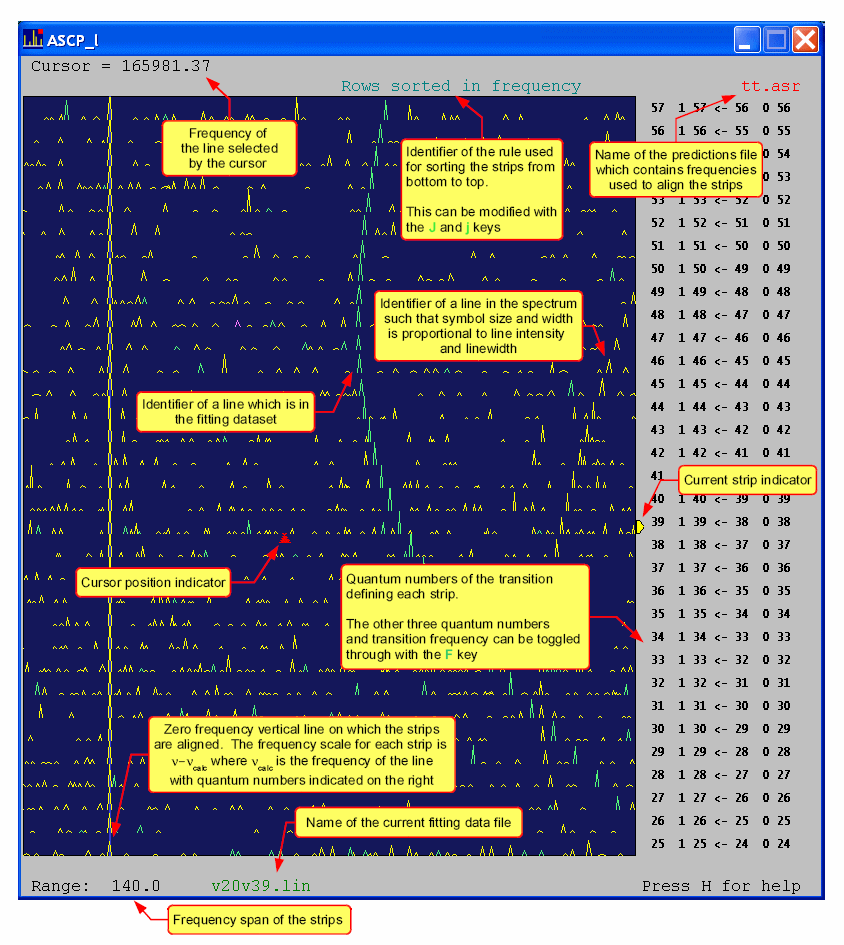
An
alternative mode of operation is to draw a Loomis-Wood type
plot of strips of the experimental spectrum centred on
successive highlighted lines. This display can either use the
actual spectrum or its stick representation based on peakfinder
results, which allows very fast operation. This mode is
especially suitable for earlier stages of assignment.
Measurements and addition of data to the fitting file can be
made in a very economic way in both the main display mode and
in the LW mode. requiring only two-three keystrokes per
spectral line.
|
|
|
AABS snapshots: |
Snapshots of the display for the basic mode of operation
(make sure that your browser
does not rescale the loaded picture, since this may affect the
clarity of what you see):
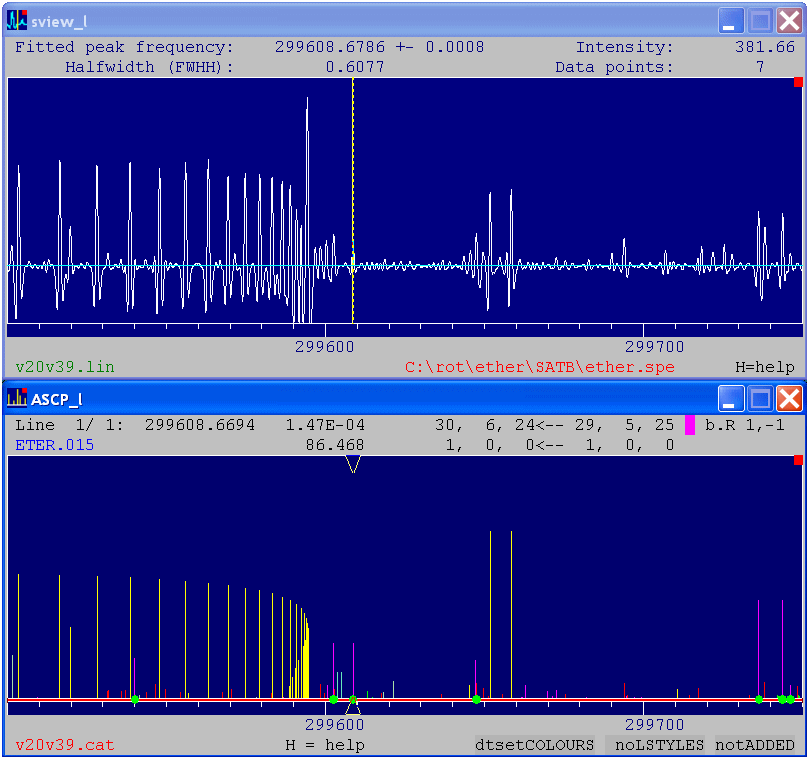
- snapaabs
- standard alignment of the two programs as
launched using the configuration files below. The predictions
consist of four data files, which are a mixture of
.ASR and .CAT
files, and are for ground states of two
different isomers and some excited vibrational states of
diethyl ether. Different species are drawn in different
colours and a transition sequence in one of these has been
highlighted in white.
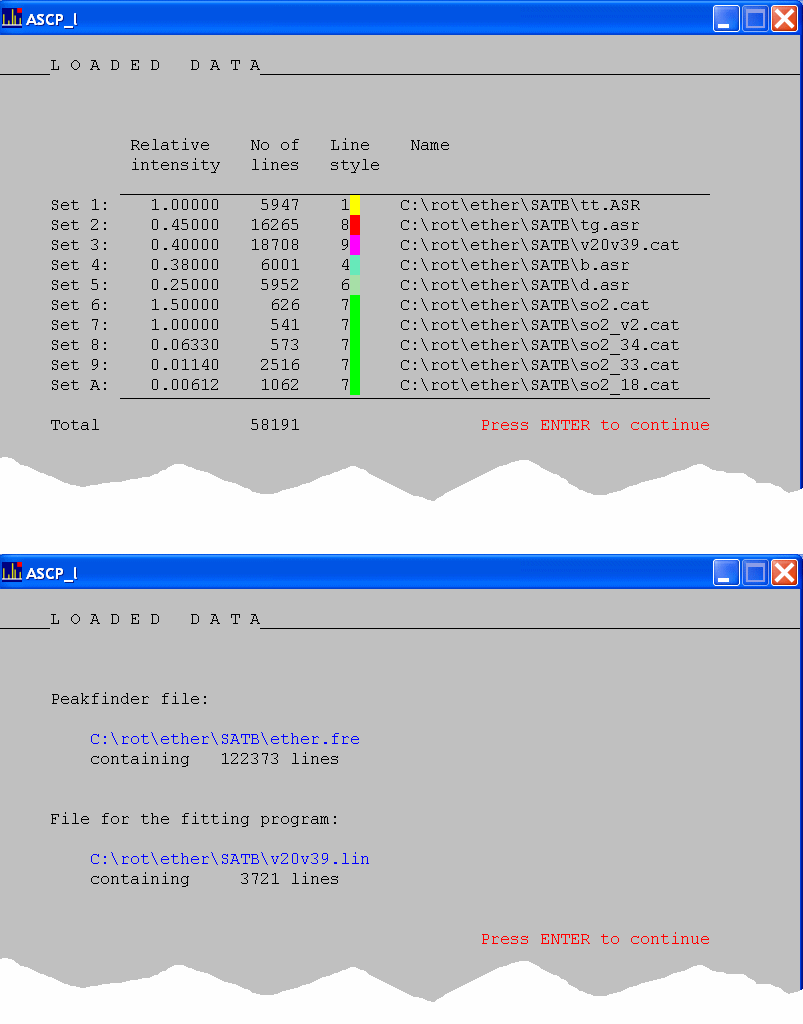
- snapai
- the summary of information on the loaded
prediction data files. Eleven different files, consisting of
a mix of .ASR
and .CAT files have been read and their
transitions merged and sorted for plotting.
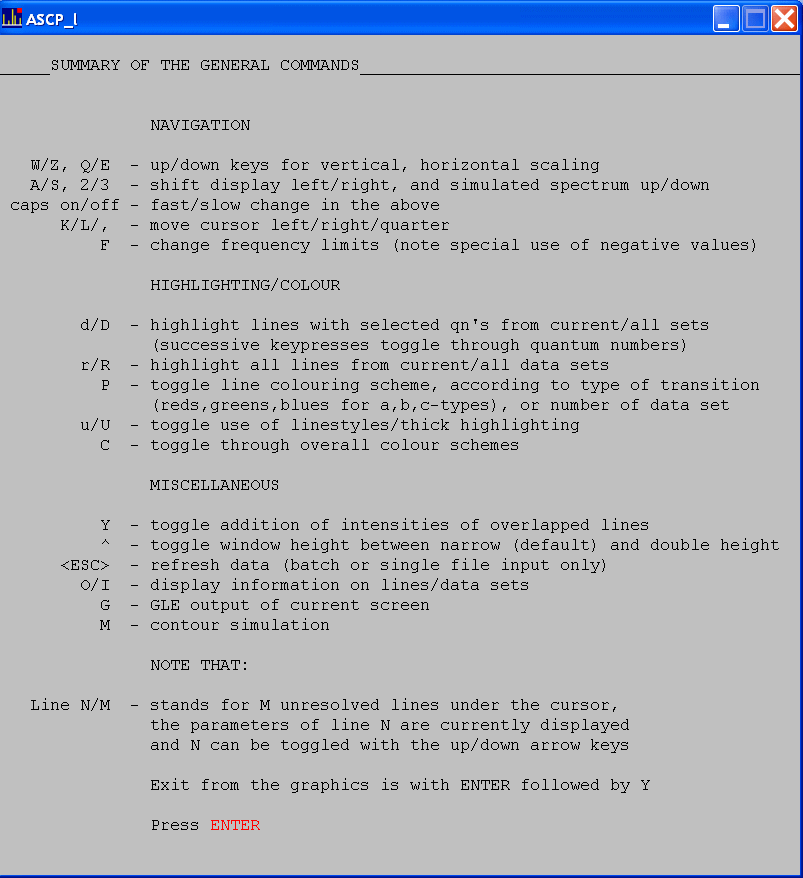
- The primary help system is as contained in
the present AABS_HELP.CHM file, but it is also
possible to display online help screens with
Ctrl
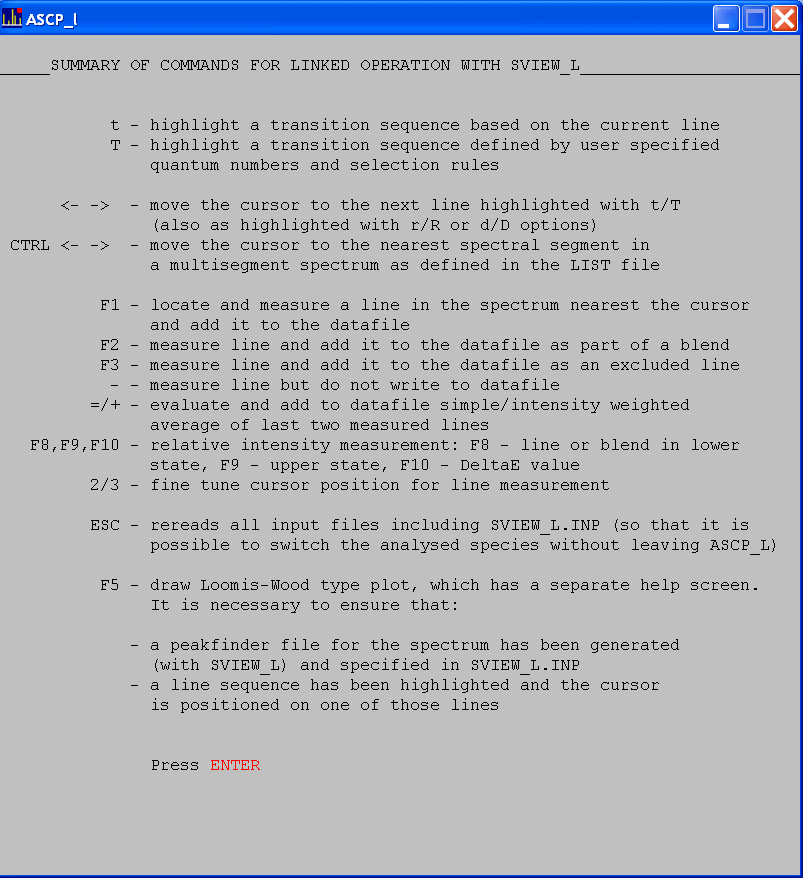
H. For the ASCP_L basic display mode these are: snapah1 - the main online help screen, snapah2 - the second help screen summarising the
ASCP_L
commands that are specific to linked operation
with SVIEW_L,
and snapah3 - the third help screen
summarising the files that can be used by ASCP_L
In
addition to the basic mode the Loomis-Wood type mode offers
extended display possibilities. The LW strips can be drawn as a
simple stick representation of the spectrum, as open and filled
triangle approximations to the spectrum and can also be from
the actual spectrum. Several alternative colour schemes and
output leading to PostScript/PDF diagrams are
available.
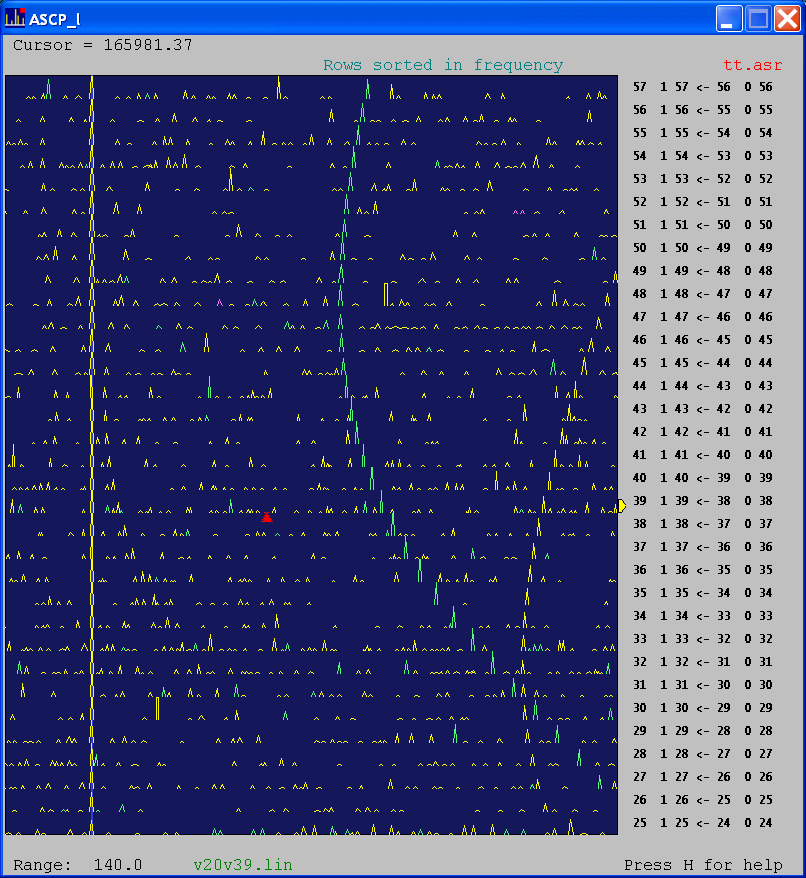
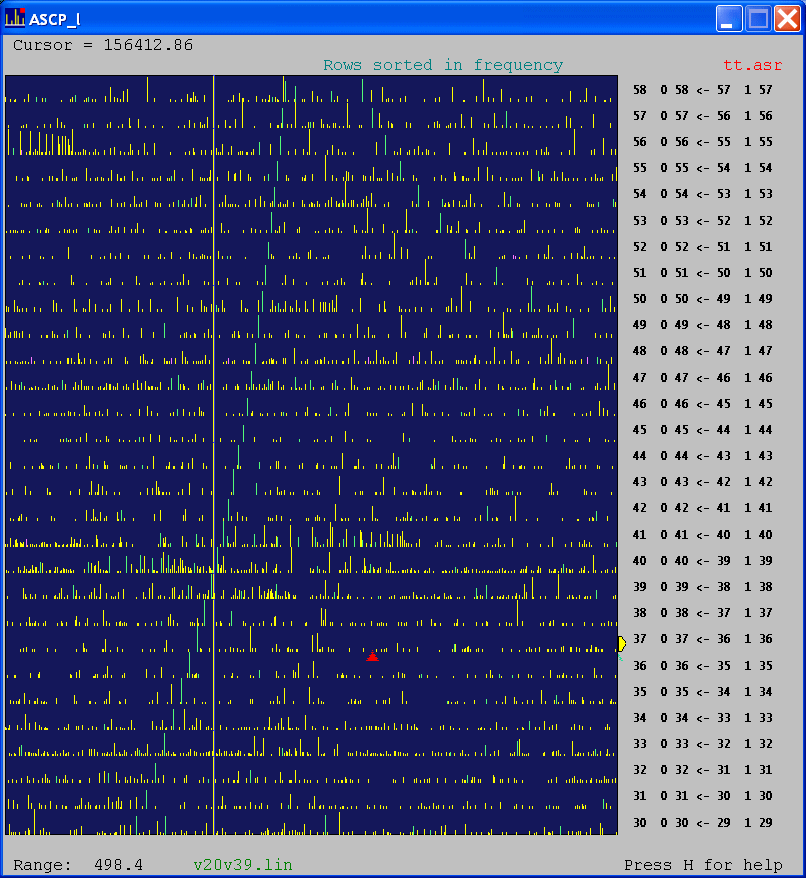
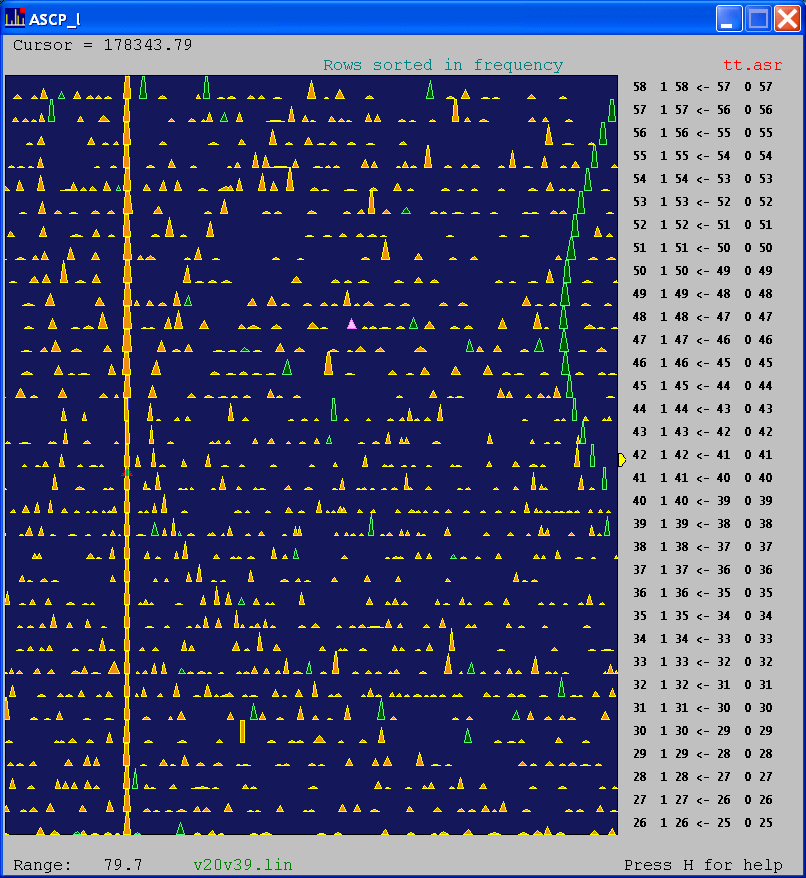
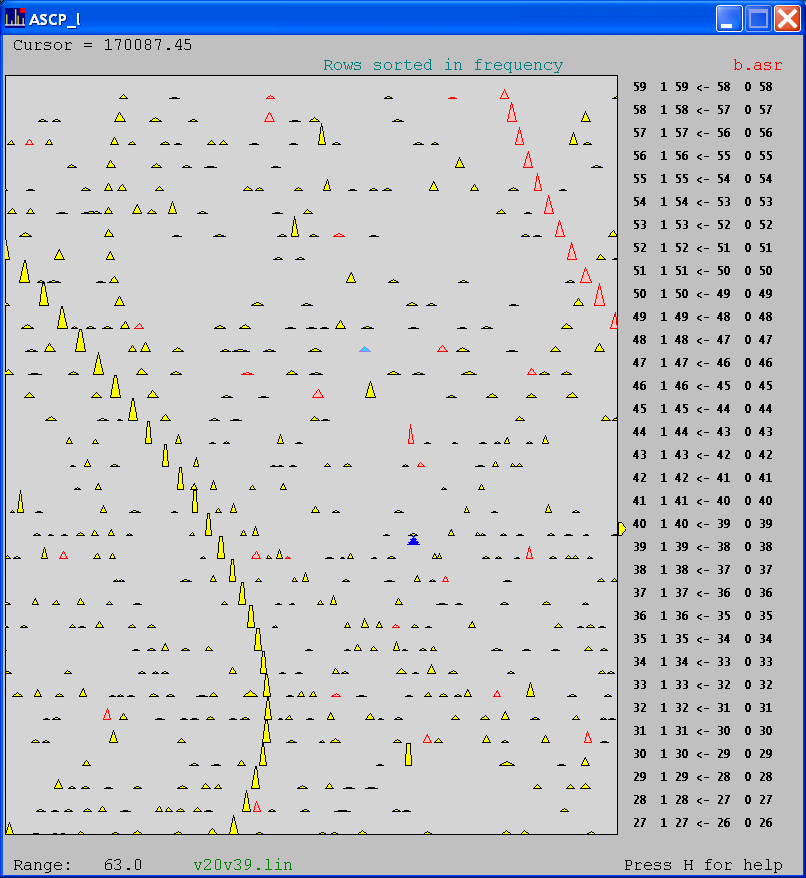
- snaplw
- the preferred open triangle mode of the LW
screen, which provides an optimum between clarity and speed
of operation and has been adapted from the excellent
Loomis-Wood program written in the Winnewisser group in
Giessen. This plot plot obtained on pressing the
F5 key while in
the normal display, after having marked a transition sequence
in the standard mode, as in the snapshot snapaabs above. The spectral strips can be easily scrolled in four
directions, a movable cursor is available to select desired
lines, and indication of assigned lines can be toggled on and
off.
- snaplwst, snaplwft - stick type and filled triangle versions of the LW
display, which are toggled through by pressing the
p key. Useful for
more broadband, and more close in work,
respectively.
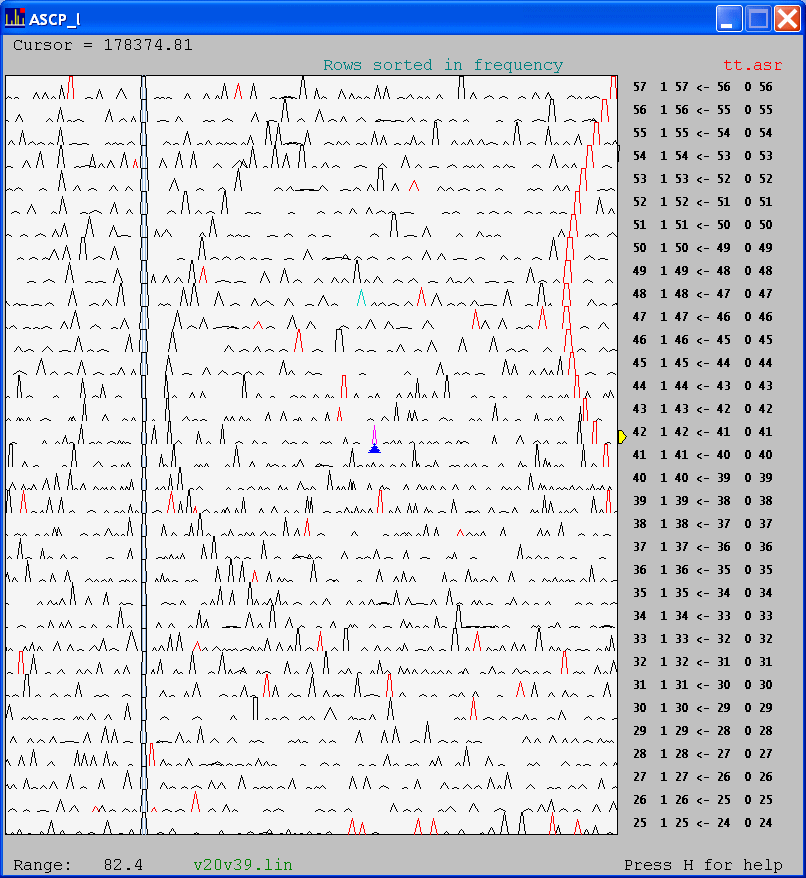
- snaplws
- Loomis-Wood type plot using strips of the
actual spectra, obtained by pressing the [
key in the LW display mode.
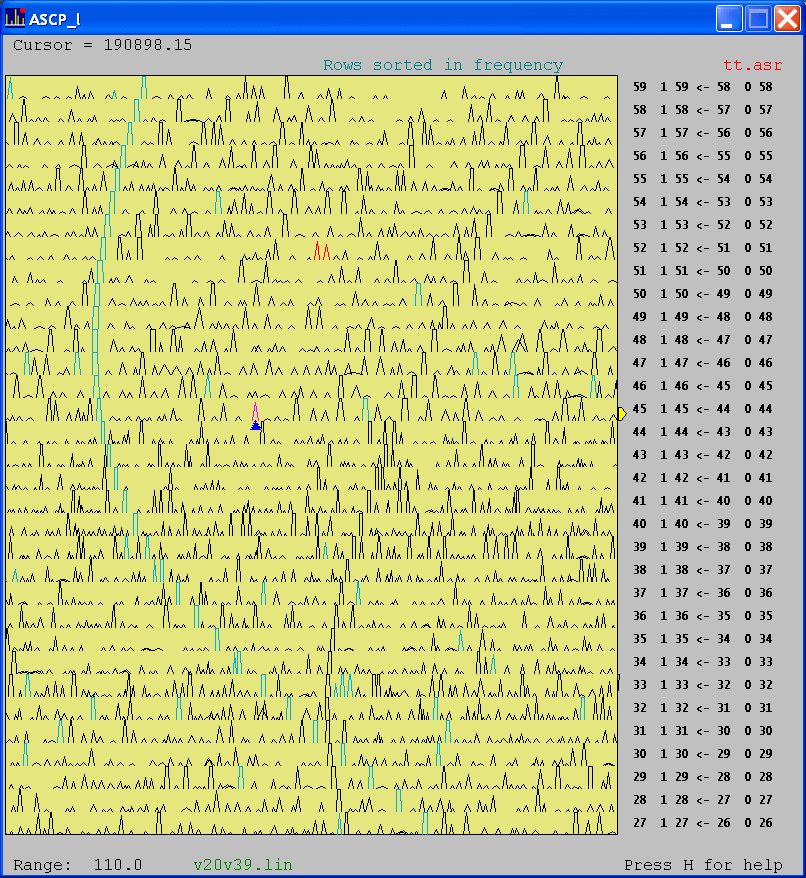
- scheme1, scheme2, scheme3 - some of the different
colour schemes for the LW display, which can selected with
the he C key in the LW
display mode.
- snaplwt.pdf - result from
output for the gle program,
which is automatically generated for the Loomis-Wood display
as above. Gle
can then be used to compile the generated
files into PostScript and PDF diagrams. Such diagram can also
be generated in portrait orientation.
- snaplws.pdf - PDF for a LW plot
based on an actual spectrum
- snaplwh
- the help screen in the Loomis-Wood type
plot
|
|
| The
recommended installation
procedure: |
- Create a directory
called C:\ROT on your
computer and place in it the five files:
|
|
- Place shortcuts to
SVIEW_L
and ASCP_L on the desktop. And this is all!
- Actually this is not all for the more
recent versions of Windows. You might need to unblock the
files for unhindered use on your computer, since Windows will
block them after downloading from the Internet. In
order to do this:
- right click on the file in Windows
Explorer or your file manager of
choice,
- select Properties,
- click the
Unblock button in
the Security area at the bottom of the General
tab.
- You might also get the
message "Msvcr71.DLL cannot be found" when you try to launch either of the two
programs. If that is the case you also need the file
MSVCR71.DLL, which
is best placed in the same directory as the programs,
namely C:\ROT.
-
NOTE: the name C:\ROT for the directory containing the program files
is mandatory and cannot be
changed. The analysis projects themselves can, however,
be in any directory of choice.
- WINDOWS 10: there is a new
default setting for borders around the program windows with
the result that the current versions of SVIEW_L and ASCP_L (as of Aug2015) lose a few
pixels on the bottom status line. The suggested
temporary solution is to use the XP compatibility mode, which
is selected with the following actions ---> Right mouse
click on the program
icon->properties->compatibility
tab->Compatibility Mode=Run this program in compatibility
mode for: Windows XP (Service Pack 3)
- WINDOWS 7: this Windows
version allows the user to change the settings for borders
around the program windows. The default value is
compatible with SVIEW_L and ASCP_L but if you notice
missing/extra pixels the working area of these programs then
set the borders explicitly using: ---> Right
mouse click on the desktop->Personalize->Window
Color->Advanced Appearance Settings->Item=Border
Padding->set size=6. An
alternative entry point to these settings is through
Control panel->Personalization.
|
On first time use on a new system you might
perhaps also want to adjust the graphics size of the
AABS programs to the size that you are prepared to devote
to them on the desktop. The program windows are not freely
scalable but their size is adjustable and is declared in the
file AABS.CFG, which may need to be reedited.
If you plan to use ASFIT/ASROT for fitting/prediction, as well as other
programs from the PROSPE website, then it is recommended that
these are also placed in the C:\ROT directory. For more convenient launching of these
programs from the command line you can optionally
add C:\ROT to your system
path. One way of going this (on XP) is to go through the
dialogue:
Control
Panel->System->Advanced->Environment Variables->
PATH
and to append
;c:\rot to the value
of that variable. Another way involves locating the file
AUTOEXEC.NT, normally
in C:\WINDOWS\SYSTEM32 and adding to it the line path=c:\rot if there was no previous such line in this
file, and if there is one then append to it ;c:\rot.
|
|
You might want to download a
complete sample project,
and follow the associated
mini-tutorial to check out some features of the package without
the need for setting up a project from scratch.
|
| |
|
| The
recommended preparatory
steps to running the package: |
- Create a directory which
is to contain all work associated with analysis of a given
spectrum, such as C:\ROT\MOLNAM where MOLNAM is the molecule name of
current interest.
|
- Copy your broadband
spectrum to this directory - it is recommended that the
spectrum is in the compact binary mode used by
SVIEW_L. This can easily be generated since
SVIEW_L
can read a spectrum as a two
column ASCII file of point frequencies and intensities
(preferably, but not necessarily, equally spaced in
frequency). Binary spectrum file is then generated with
the M option.
|
- Generate peakfinder output
for this spectrum if Loomis-Wood type plots are to be used
for assignment. This is to be done by using the automatic
peakfinder of SVIEW_L, which is invoked by specifying a negative value
for the 0 option.
|
- Make sure you have
either SPFIT/SPCAT or ASFIT/ASROT
running on your computer, the
relevant executables can also be placed in directory
C:\ROT
|
- It is highly recommended
that you have a text editor that is able to sense that the
contents of an opened file has changed and it can then
refresh it. The standard Notepad editor is not able to do
this but, for example, the PSPAD
editor can.
|
|
|
- Edit a suitable version of
the MOLNAM.INP file, which declares the names of
prediction files to be displayed by ASCP_L.
|
- When working with a
segmented spectrum it is, optionally, possible to
use a file called LIST to specify the frequency segments for which there is
data. This file can either be created using SLIST (if the component spectra are available)
or by reediting this LIST example - only the frequency entries are of
relevance.
|
| |
|
| The recommended
way of launching
the
package: |
- From your favourite file
manager drag and drop the spectral file onto the
SVIEW_L
icon on the desktop, then
press ENTER
|
- Drag and drop the
MOLNAM.INP file
onto the ASCP_L icon on the desktop. Press 2 ENTER
for batch input, and then
just ENTER as a data
file name.
|
- In the text editor open
the data files associated with fitting the current
spectroscopic species of interest as declared in
SVIEW_L.INP. These
might be either .LIN, .PAR,
.FIT
files for SPFIT, or
.ASF,
.RES
files for ASFIT
|
- Open a command prompt
window, with the current directory set to the work directory
for the current problem
|
- The two viewing programs
should have opened as two adjacent strips. Almost all
operations are carried out from within ASCP_L, which controls the display of
SVIEW_L
as necessary. There are,
however, two tuning tasks for dealing with the spectrum that
it might be necessary to perform in SVIEW_L. One is setting the optimum width of the fitting
window for determining line frequencies - expand a line
profile with A/S keys and optimise using the O
and 0
options. Another task is
Y-axis scaling of the spectrum - use W/Z and 2/3 keys.
|
| |
|
|
Typical
operation: |
- Click (or use
ALT
TAB) to
make ASCP_L the active window - this should be the lower of
the two strips. Note that there is minimal mousing around
- almost all commands are issued from the keyboard, which
is a much faster device and allows increased efficiency.
It pays to study and learn the main keys for controlling
the programs and two summary charts ASCP_L_KEYS.PDF
and SVIEW_L_KEYS.PDF
have been prepared to
print and keep handy. Note that the navigation commands
for the two programs are identical.
|
- Move to the stick
corresponding to a line from a line sequence of interest
and highlight this sequence with t. It might actually be easier to just move to any
line predicted for this spectroscopic species, use
T to preselect a range of lines, and then find the
desired type of line with left/right arrows.
Subsequently t will highlight the sequence
precisely.
|
- Move along the lines
in the highlighted sequence with left/right arrows and
make measurements as necessary, mainly with
F1 or F2. If a line in the spectrum is significantly off
the cursor position you can move closer to it with
2/3 keys of ASCP_L and then measure.
|
- You might want to
check on the progress of accumulation of measurements in
the fitting data file by moving to the text editor
window. The data file is not locked by the
AABS programs so that lines can be
rearranged/tidied, the file saved, and further data will
be appended to the modified file.
|
- Go to the command line
window and carry out fitting and prediction in your
favoured way. It is recommended to browse through the
results file from the fit prior to embarking on
predictions. If working with SPFIT you might find it
useful to reformat the .FIT file with program PIFORM, which improves readability and
allows annotations on the data file. The
fitting/prediction is not automated on purpose. It is
hoped that in this way the user can spot any problems
earlier and will take suitable corrective action, before
it is too late.
|
- Once new predictions
are ready press ESC in ASCP_L, which updates predictions, as well as markers
of lines already measured. To switch to a new
spectroscopic species place the name of the new file for
the fitting program in SVIEW_L.INP and update both SVIEW_L
and ASCP_L
by pressing
ESC.
|
- In more difficult cases launch the Loomis-Wood
display by setting the cursor on a highlighted line and
pressing F5. Use the help screen
of this display for information. The steps above can be
carried out as many times as necessary - it is not
necessary to close the two display programs at any
stage.
|
|
|
|
Running AABS under
Linux: |
The native
operating system for both ASCP_L and SVIEW_L is Windows. It
is, however, possible to run these programs in Linux by
means of the Wine package. The programs were tested
using wine-3.0.1 from WineHQ as installed on Ubuntu 16.04
and described in the notes below. Previous
Wine/Ubuntu combinations did not work as well. This
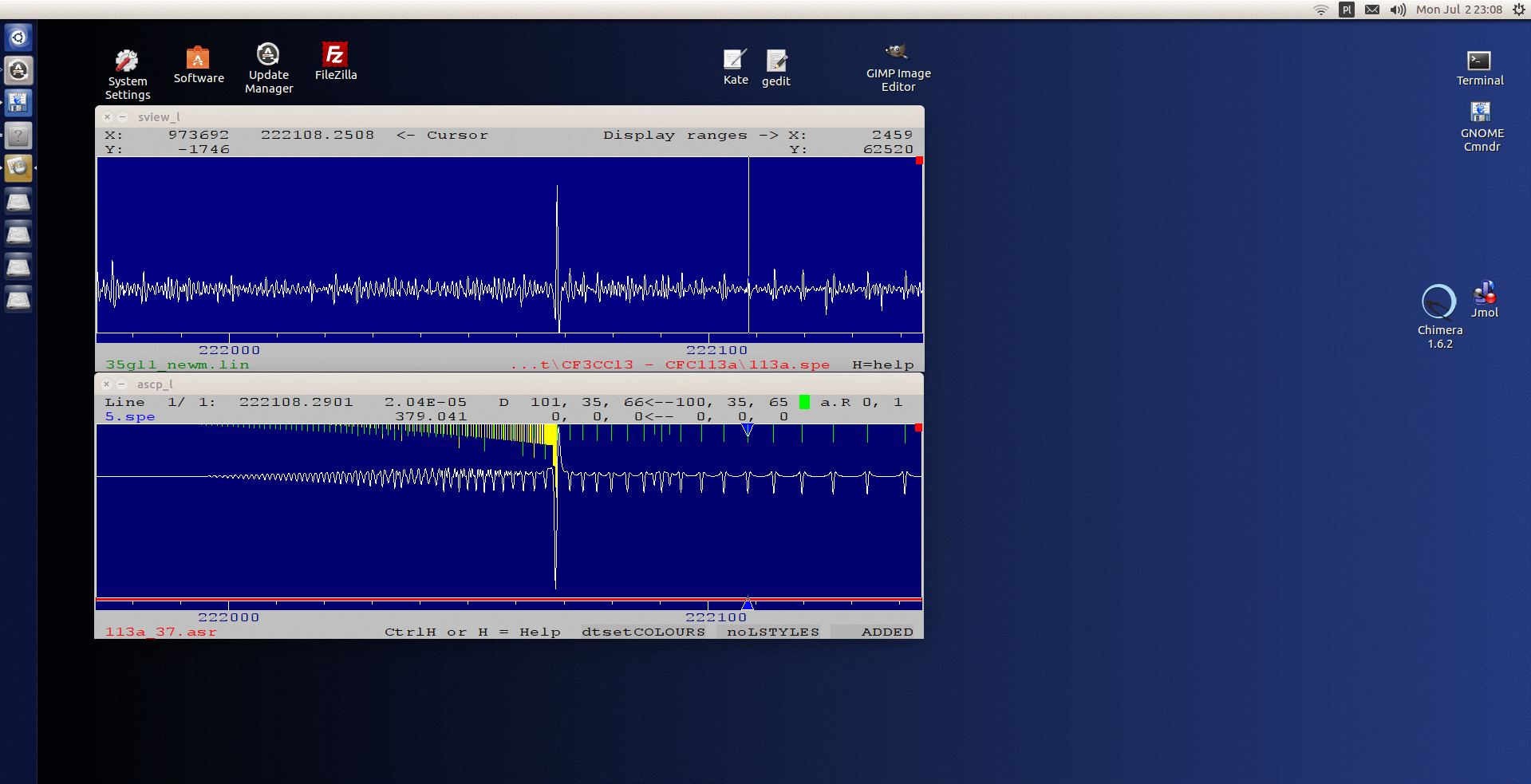
snapshot demonstrates linked
operation of the two main programs under
Ubuntu.
|
|
Installation of Wine: |
|
Install Wine as
described in https://wiki.winehq.org/Ubuntu
by means of the commands:
wget -nc https://dl.winehq.org/wine-builds/Release.key
sudo apt-key add Release.key
sudo apt-add-repository https://dl.winehq.org/wine-builds/ubuntu/
sudo apt-get update
sudo apt-get install --install-recommends winehq-stable
Carry
out STEP_1 of the AABS installation as described
below and launch either ASCP_L or SVIEW_L.
This will result in prompts to also install:
Wine Mono package (see
https://wiki.winehq.org/Mono
for info)
Wine Gecko (see https://wiki.winehq.org/Gecko
for info)
and these packages should be
installed when prompted. This step will also
install and configure the ~/.wine
directory required for STEP_2 of AABS
installation.
Two problems have been identified that require additional
actions:
PROBLEM_1: Insufficient graphics
window size = most of the lower line of
the two bottom lines below the frequency axis is missing
as well as some contents on the right hand side. In
order to avoid this it is necessary to ensure that Wine
assigns Windows XP for ASCP_L and SVIEW_L (or other
graphics programs from the PROSPE website). In the
terminal window type>
winecfg
and in the "Wine configuration" window
that appears, in the "Applications" tab, select "Default
Settings", and Windows Version=Windows XP.
Alternatively you can add the programs explicitly from
their location and assign "Windows XP" to each in
turn.
PROBLEM_2: Garbled appearance of
the banner page = this will happen
irrespective whether ASCP_L or SVIEW_L is launched
and is due to insufficient fonts available to the
operating system. In that case it is necessary to
install Windows type fonts and the easiest way is to
locate and install the package
ttf-mscorefonts
by using the
Ubuntu Software Center. If you decide to use this
route then make sure you accept the EULA, which is
somewhat tricky as the best way to switch between NO and
YES is to type Y on the keyboard (rather than using the
mouse or the TAB key).
|
|
Installation of AABS: |
STEP_1: Place the
four files
ascpexch.dll
msvcr71.dll
ascp_l.exe
sview_l.exe
in any suitable
directory, but it is suggested that this is
~/Documents/rot
which allows creation of systematically named work
directories
~/Documents/rot/molnam
for projects associated with specific molecules.
STEP_2: Place the two files
aabs.cfg
aabs_help.chm
in the rot subdirectory
created manually under the directory for drive C within the
user's main .wine directory,
and variously named by the system as
/home/username/.wine/dosdevices/c:/rot
/home/username/.wine/drive_c/rot
~/.wine/drive_c/rot
|
|
Running AABS: |
METHOD_1:
Command line launch from xterm (assuming the current
directory is ~/Documents/rot/molnam):
wine ../sview_l &
wine ../ascp_l &
METHOD_2: File manager launch (such as from Gnome
Commander):
right click on the executable, then Open with->Wine
Windows Program Loader
Fully linked operation is only obtained,
as in the Windows version, when a suitable
sview_l.inp file
is present in the project directory. Note that, in addition
to linked ASCP_L and SVIEW_L, several
instances of SVIEW_L
can be run for comparing spectra.
|
| Known
issues: |
Launching
of any graphics program is accompanied by a pop-up error
window with the text:
QuickWin Error: Internal Error - unexpected error file
"qwgwnd.c", line xxxx
This message is the same (including the line number)
irrespective of whether the launch is of
ASCP_L or SVIEW_L.
Just press OK on the box, as no significant undesirable
consequence of this error has yet been identified (the only
difference from a Windows launch is that the program window
opens at a different size than declared in aabs.cfg, but is
scaled to the desired size after pressing OK on the error
box). The bug appears to be a long-standing one with
several mentions on the Internet (including Wine testing),
but no workaround or resolution has been suggested.
Launching the compiled help file with the
H command
produces multiple diagnostic messages (visible on command
line launch of ASCP_L or SVIEW_L).
The help seems readable except that manual scaling of the
help window is necessary, and hyperlinks leading outside of
the help document are not followed.
Please use the ASCP_L executable
dated no earlier than 20.06.2018. This avoids
installation of additional fonts, that were previously
required for the Loomis-Wood module
display.
|
|
|
|
 |
| |
| |
|
|
SVIEW_L = Spectral viewer |
| |
|
| SVIEW_L.EXE |
The executable for Windows, to be placed
in a directory named C:\ROT. The program uses
dynamic memory allocation so that spectrum length is only
limited by the hardware resources of the
computer.
SVIEW_L reads
spectra in the IFPAN binary format and in two
column [frequency,intensity] ASCII
format. ASCII to binary conversion is also
possible.
- The summary of active keys in
SVIEW_L_KEYS.PDF provides a
convenient overview of the possible
actions.
- The most complete documentation is
available in AABS_HELP.CHM
NOTE: you might want to check the
comments on use of the PC-Speaker made below.
|
| |
|
| SVIEW_L.HDR |
The header of the current source file.
This contains the date of the current version and more
documentation. |
| |
|
|
ASCP_L = Viewer of predictions |
| |
|
| ASCP_L.EXE |
The executable for Windows, to be placed
in a directory named C:\ROT. Dynamic memory
allocation is now used so that memory can be allocated
more efficiently for both small and large
problems.
ASCP_L reads .ASR files from ASROT, .CAT files from SPCAT, .FRE files
from the automatic peakfinder in SVIEW_L, and
simple two column (frequency, intensity) ASCII
files.
- The summary of active keys in
ASCP_L_KEYS.PDF provides a
convenient overview of the possible
actions.
- The most complete documentation is
available in AABS_HELP.CHM
NOTE: The two AABS
programs make various beeping noises of
confirmation/warning using the PC-Speaker channel.
Support of this channel seems to vary these days. On
desktops it is not too rare to find no device connected
to the separate PC-Speaker output on the mainboard,
because case manufacturers no longer put such a device in
the case. The seller, when requested, will attach a small
beeper to that connector.
On laptops this channel may be just another
channel in the sound card, but often without active
volume control. In such case the volume of the beeping
sound may be controlled using the beep settings in
SVIEW_L.INP.
It is also possible that the PC-Speaker channel is
inactive/muted and may have to be activated in your
Windows.
|
| ASCP_L.HDR |
The header of the current source file. This contains the
date of the current version and more documentation.
|
| MOLNAM.INP |
A sample batch input file for ASCP_L to be reedited as
necessary. This is the most convenient way of using this
program when more than one file with predictions is to be
loaded. This file can be edited with any text editor.
Note that mixed input from .ASR and .CAT files is declared in this
example. In order to unify the intensity scales of the
two programs you need to either increase the intensity
scaling coefficient for the .CAT file by 4.87 or to divide
that for the .ASR file by
the same factor.
A legend for colour codes can be found in the
description of the parent ASCP program. Colour
codes greater than 10 allow user definable colours by
means of their hexadecimal RGB value.
|
| |
|
| |
Files required
by both ASCP_L and SVIEW_L |
| |
|
| ASCPEXCH.DLL |
Allows information to be exchanged between
SVIEW_L
and ASCP_L. This
file is mandatory and has to be placed in
C:\ROT. The two viewing programs can also work in standalone
mode, but even then this DLL is necessary. |
| AABS.CFG |
The configuration file for graphics, to be
placed in C:\ROT, the active settings in
this version are for comfortable operation on a 1268x1024
pixel desktop. More information on the possible settings
is given in the section on SVIEW.
In Windows7 (possibly also W8) you might sometimes find
that the bottom descriptive line has several bottom
pixels missing (such that the 'p' in 'H=help' is more
like an 'o'). This results from your Windows
configuration assigning too narrow
borders to the AABS program
windows. The solution is to:
- Right click on the desktop and
select 'Personalize'
- Select 'Window color' in the bottom
row of options
- Select 'Advanced appearance
settings'
- Choose 'Item=Border
Padding'
- Set 'Size=value' as required
(typically 5 or 6)
|
| AABS_HELP.CHM |
The comprehensive help file for the package, which is
also to be placed in C:\ROT. The file is viewed by
pressing the H key in
either SVIEW_L or ASCP_L. The old internal help screens
can still be displayed by pressing Ctrl
H.
On some Windows systems viewing of
CHM files may not be possible. In particular, when
this file is downloaded from the Internet the current
Windows will block access to its contents as an added
security measure (you get the message: "Navigation to the
webpage was cancelled"). In order to
unblock:
- right click on the file in
Windows Explorer or your file manager of
choice
- select Properties
- click the Unblock button in the
Security area at the bottom of the General
tab.
You can read this
Wikipedia entry for additional information on this
standard and on alternative
viewers.
|
| SVIEW_L.INP |
The input file read by both
SVIEW_L and ASCP_L which
specifies several important parameters for linked
operation under the AABS
scheme. The file is to reside in the
directory used for the current analysis and the key
parameters are:
- the name of the fitting data file to
which measurements are to be appended. File extension
specifies the fitting program: .LIN selects SPFIT and .ASF selects
ASFIT
- the name of the peakfinder file for
Loomis-Wood type plots made with ASCP_L. This
file is to be generated with the automatic peakfinder
option of SVIEW_L
|
| MSVCR71.DLL |
This file is only necessary if you are unable to launch
the programs and the system prints a message that
"Msvcr71.DLL cannot
be found" .
This DLL is best placed in C:\ROT.
The reason is that this file is no longer regarded as
part of the operating system and is no longer distributed
with Windows. Developers using Visual C++ .Net 2003 (as
is the case here) are to distribute it with their
application: see this Microsoft
note.
|
| |
|
|
Sample project and
tutorial |
| |
|
| LACTIC.ZIP |
An archive containing a complete AABS project for the
mm-wave rotational spectrum of lactic acid as published
in J.Mol.Spectrosc. 234, 106
(2005).
Once you have been through the installation and launching sections and are sure that
SVIEW_L and ASCP_L will run on your
machine, just unzip the project into a directory of your
choice and then do the following (in the suggested
order):
- drag the lactic_acid.spe file (the
spectrum) to SVIEW_L and press
ENTER in response to the
file name query
- drag the la.inp
file to ASCP_L and press
2 and then ENTER in response to the
input mode query, and ENTER again
in response to the next question
- The spectrum is a segmented spectrum and since the
programs open in the centre of the declared frequency
region it so happens in this case that the top window
will show a horizontal line. Use the CTRL+
Left Arrow and CTRL+ Right
Arrow shortcuts in ASCP_L to move to
frequency regions for which the spectrum has been
recorded
The project contains data files for the ground state
of lactic acid and nine different excited vibrational
states. You might want to press P in
ASCP_L to change to "dataset
colours" for better clarity, and press I for a
legend on loaded datasets. The green dots are measured
ground state lines as contained in the LA0.ASF file that is specified in
the SVIEW_L.INP file.
To launch the Loomis-Wood display for a sequence of
lines move the ASCP_L cursor to a line of
your choice using the K and L keys,
and possibly also the A and S keys.
The parameters of the current line are displayed near the
top of the program window. Then press t for
"Highlighting by cloning" and type -2
ENTER. This will highlight a
sequence of transitions with the
Ka'' value and the selection
rules of the current transition. Pressing F5 will then launch the
LW-mode. Since the spectrum is segmented and moderately
sparse you might not see too much, but you can increase
the number of LW rows using the + key. Note
that pressing H in any screen gives you
on-line help.
If you want to see the line sequences in Fig.4 of the
lactic acid paper then, while in the normal ASCP_L display,
type F and then enter, say
-234082.4 to centre the display on the band origin, move
the cursor (if necessary) to the leading line in the
band, then press t and type -3
ENTER to select bands of this
type, which are defined by a common value of
Kc. Pressing F5 then displays all such
bands, of which there are six in the recorded spectrum.
You might expect to see something like this, and you can
generate a Postscript version of this display like this by using the
G key and external
compilation of the resulting files with the gle package.
|
la.009
la.010
la.011 |
Raw spectra in SVIEW_L binary standard for
testing baseline subtraction, smoothing and concatenation
operations. |
| la0_test.asf |
Abbreviated ground state data file for
lactic acid for training the use of the ASFIT program and
measurements with the AABS package (first check what
is necessary to reduce the deviation of fit to unity) |
| |
|
| |
Legacy versions |
| |
|
| ASCP_L_400k.EXE |
The last version of ASCP_L with static memory
allocation for up to 400k lines. |
| |
|
| SVIEW3_L.EXE, SVIEW6_L.EXE, SVIEW10_L.EXE, |
The last SVIEW_L
executables based on static memory
allocation for 3M, 6M and 10M point length spectra. Note
that the 10M point program needs a lot of internal memory
(up to 235 Mbytes). |
| |
|
|
| |
Accessory
Programs |
| |
|
AC = Automatic Converter (microwave lines)
|
| |
Automatic
Conversion of
output from a fitting program into a graphical plot of
distribution of (obs-calc) values as a function of
quantum numbers. Input can be from:
- a .RES output file
from ASFIT (option 2)
- a .FIT file from
SPFIT as reformatted by PIFORM
- a .RES output file
generated by ERHRES from output of
ERHAM
The aim of this program is to allow
rapid insight into
the structure of large spectroscopic
datasets, in order to plan measurements and deal with outliers. The main
features are:
- Plotting of absolute (obs-calc) values, or (obs-calc)/f_error.
- Splitting of P-, Q- R-branch transitions into separate data subsets (if so desired).
- Selection of quantum number and its value, for splitting out
subsets of transitions, for example, for a given vibrational
state. The generated file names are labeled accordingly.
- Additional descriptive label can be added to data file names to use, for example, to label data from different sources.
|
| AC.EXE |
Win32 executable |
| AC.FOR |
The source code |
11
|
Text file containing commands for running AC in the pipeline operation mode. Additional information is contained in this file.
It is necessary to have a command window open on the directory with the PIFORM output file, then you need to type the command:
AC<11
In this way graphical insight into an updated fit can be easily
refreshed, providing the graphics package senses the change in the
data files. The QGLE front end of the gle package will do so.
|
| |
|
| PQR.GLE |
The diagram description file for the gle program, using the data
files produced by AC. The size of each
marker is proportional to the value of the obs-calc
difference, and red markers denote values greater than
3s. Purple crosses are for the
relatively rare P-type transitions.
This file is a simple ASCII script that can be
customised by editing in places indicated by the
comments.
|
| |
|
|
PQR.PS
PQR.PDF
|
The PostScript diagram obtained by first running
AC on the data
file TG.RES for tg-diethyl
ether and then (for gle4.0.7 installation) issuing the
command:
gle_ps pqr.gle
This data set was published in
J.Mol.Spectrosc. 228, 314
(2004), and the plot allows some small defficiencies to
be immediately spotted. For example, the lone
Q-type line for K-1''=1
would not now be reported unless several supporting lines
of the same type were available. Several other lone
lines, well removed from the main line sequences, might
also be accidental.
|
|
|
| |
ACIR = Automatic Converter (infrared lines) |
|
|
|
Automatic
Conversion of the IR part of the output from SPFIT as reformatted with PIFORM. The ACIR output consists of data files for the gle program, which can be combined with a suitable script file to produce a graphical plot of
distribution of (obs-calc) values as a function of
quantum numbers. The main features are similar to those of AC as listed above.
NOTE: It is necessary to use a relatively recent version of PIFORM,
as distinction between IR and MW lines is made on the basis of
different formatting of respective transition lines in its output.
|
| ACIR.EXE |
Win32 executable |
| ACIR.FOR |
The source code |
| ir10and11.gle
|
The script for plotting infrared results for the l;owest excited vibrational state of acrylonitrile as generated by ACIR from the data set published in 2015 (and available on this site).
|
| ir10and11.pdf
|
The resulting diagram. Note that both
fundamental and pure rotational transitions have been measured in the
infrared spectrum.
|
00_and_11.gle
|
Script combining pure rotation measurements in microwave and infrared spectra extracted with AC and ACIR, respectively, from the same acrylonitrile fit as above. In this case all transition types are plotted in the same pane.
|
| 00_and_11.pdf |
The diagram: note the half integer shift in the Ka values in order to better differentiate between microwave and infrared results.
|
11i and 11m
|
Simple ASCII files listing the commands required for
rapid reproduction of a given diagram using pipeline operation of the
two programs with the commands:
AC<11m and
ACIR<11i
|
|
|
|
|
 |
Back to the
table of programs
|
 package for: